Tabs
Organize ESP-DASH Pro dashboards into multiple pages with tabs, each with an optional sidebar icon.
ESP-DASH Pro feature. This functionality is available only in the commercial edition of ESP-DASH.Tabs split the dashboard into multiple pages so that you can group related widgets. They are useful when a dashboard contains a large number of cards and charts.
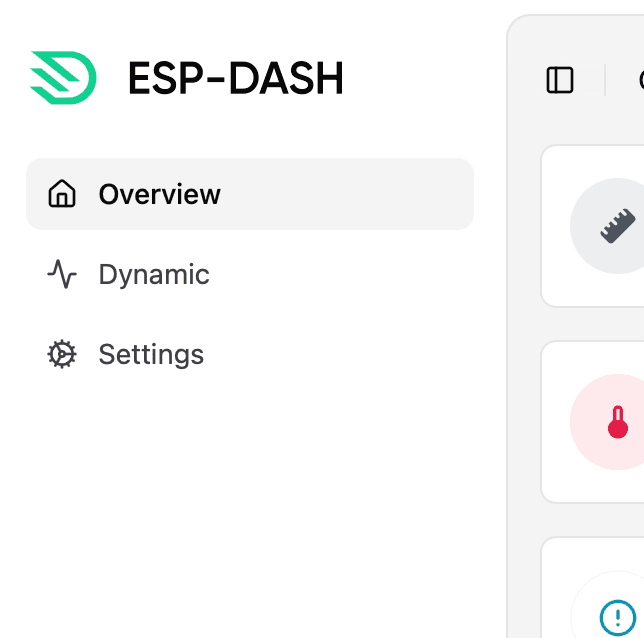
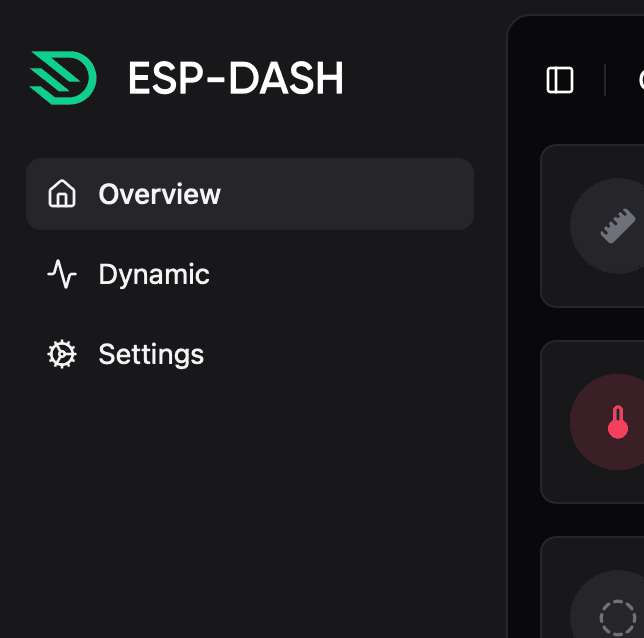
By default, ESP-DASH places all widgets in the Overview tab.
If every card and chart is assigned to a custom tab, the dashboard hides the Overview tab from the sidebar.
Constructor
Declare tabs in global scope, outside of any function.
dash::Tab tab1(dashboard, "Custom Tab 1", dash::Icon::COG_ICON);Prop
Type
Icons
Since v5, you can assign an icon to a tab with the dash::Icon enum. The icon is displayed in the sidebar next to the tab name.
| Value | Icon |
|---|---|
UNASSIGNED_ICON | None (default) |
HOME_ICON | Home |
COG_ICON | Cog |
SUN_ICON | Sun |
MOON_ICON | Moon |
SUN_MOON_ICON | Sun and moon |
DATABASE_ICON | Database |
COMPUTER_ICON | Computer |
ACTIVITY_ICON | Activity |
ALARM_ICON | Alarm clock |
AUDIO_ICON | Audio waveform |
JOYSTICK_ICON | Joystick |
Assign a widget to a tab
After you create a tab, assign cards and charts to it with their setTab() method. setTab() takes a reference to the tab.
card1.setTab(tab1);chart1.setTab(tab1);To move a widget back to the Overview tab, call removeTab():
card1.removeTab();Both methods return true if the assignment changed and false otherwise.