Branding
Replace the default ESP-DASH Pro dashboard logo with your own light and dark logos by editing the logo.h and logo.cpp library files.
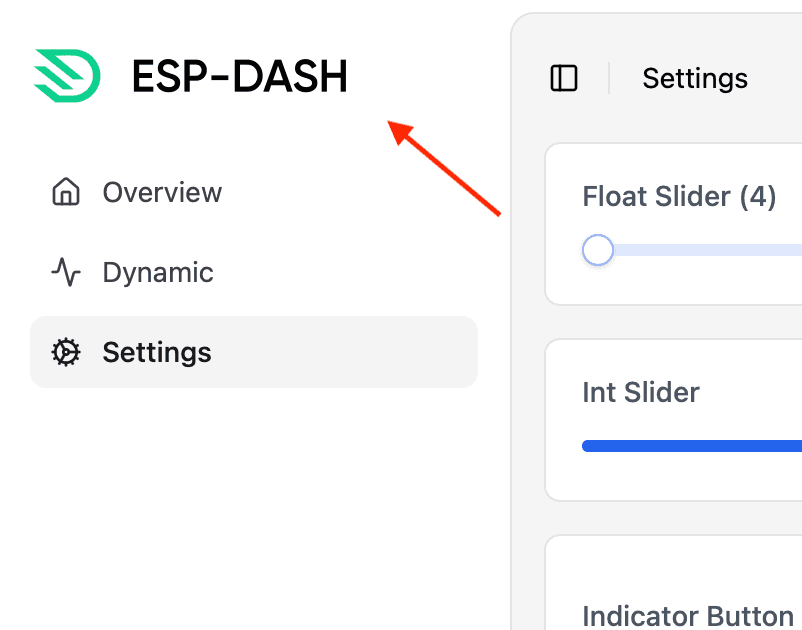
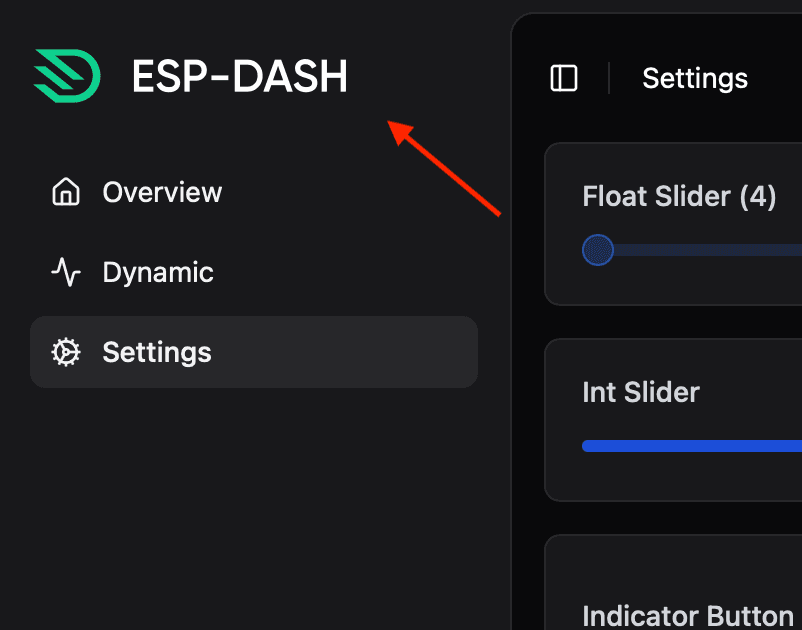
ESP-DASH Pro feature. This functionality is available only in the commercial edition of ESP-DASH.Branding refers to the logo displayed on the ESP-DASH Pro dashboard. The logo is stored as byte arrays in the logo.h and logo.cpp files of the library source, so you can replace it without modifying any HTML or CSS.
Replace the logo
Prepare the logos
Create or obtain the logo you want to display. Use SVG (recommended), PNG or JPG, and optimize the image to keep the file size small.
Prepare two versions of the logo, one for each theme. The light-theme logo should use darker colors and the dark-theme logo lighter colors, so that the logo remains legible in both themes.
Convert the logos
Convert both logo images into byte arrays. The converter below generates ready-to-use logo.h and logo.cpp files with gzip-compressed data:
To convert the images manually instead, use the File2Raw utility, as described in the logo.cpp file of the ESP-DASH Pro library:
- Open File2Raw and upload the image file.
- Select Gzip Compress and Use PROGMEM (Arduino).
- Click Convert and copy the generated data.
Repeat the procedure for the light-theme and the dark-theme logo.
The conversion utility is provided as is, without warranty or liability of any kind.
Replace the logo files in the ESP-DASH Pro library
If you used the converter, replace logo.h and logo.cpp in the src folder of the ESP-DASH Pro library with the downloaded files. If you converted the images manually, update the existing files:
- In
logo.cpp, replace the contents ofDASH_LOGO_LIGHTandDASH_LOGO_DARKwith the generated data. - In
logo.h, update the array sizes in theexterndeclarations ofDASH_LOGO_LIGHTandDASH_LOGO_DARKto match the new data. - In
logo.h, setDASH_LOGO_LIGHT_MIMEandDASH_LOGO_DARK_MIMEto the MIME type of each image, for example"image/svg+xml"or"image/png". - Keep
DASH_LOGO_GZIPPEDset to1when the data is gzip-compressed.
#define DASH_LOGO_LIGHT_MIME        "image/svg+xml"
#define DASH_LOGO_DARK_MIME         "image/svg+xml"
#define DASH_LOGO_GZIPPED     1
#define DASH_LOGO_WIDTH       158
#define DASH_LOGO_HEIGHT      32

extern const uint8_t DASH_LOGO_LIGHT[1983];

extern const uint8_t DASH_LOGO_DARK[1961];
Upload the firmware
Compile the sketch with the modified ESP-DASH Pro library and upload the firmware to your device.
Browsers cache the logo. Clear the browser cache or perform a hard refresh to see the new logo immediately.
Review the changes
Open the dashboard in a browser. The dashboard switches between the light and dark logos according to the active theme.
To adjust the logo size, change DASH_LOGO_WIDTH and DASH_LOGO_HEIGHT in logo.h and upload the firmware again. Clear the browser cache after each change.
Logos and other branding elements may be subject to copyright and trademark law. Ensure that you have the necessary rights or permissions to use any branding elements in your project.