Toggle Button Card
Switch between on and off states from the ESP-DASH v4 dashboard with the toggle button card and its callback.
The toggle button card switches between two states, 0 (off) and 1 (on). Use it to turn outputs such as relays or LEDs on and off from the dashboard.
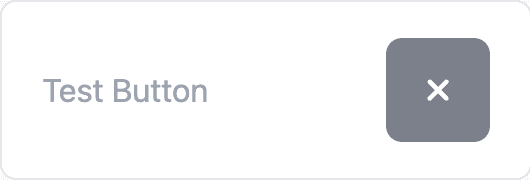
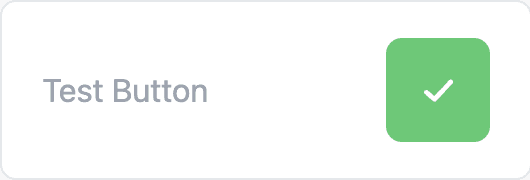
Constructor
Card button(&dashboard, BUTTON_CARD, "Light");Prop
Type
Callback
void attachCallback(std::function<void(int value)> cb);The callback fires when the user clicks the button on the dashboard. value is the requested state, which is the inverse of the current state: if the button is 0, a click invokes the callback with 1.
Call update() with the received value and then dashboard.sendUpdates() inside the callback. Otherwise the dashboard does not register the new state.
button.attachCallback([&](int value) {
  Serial.println("Button: " + String(value == 1 ? "on" : "off"));
  button.update(value);
  dashboard.sendUpdates();
});
Methods
update()
Sets the button state. Call dashboard.sendUpdates() afterwards to push the change to connected clients.
button.update(1); // on
button.update(0); // off
update(bool value) is also available.
Example
#include <Arduino.h>
#if defined(ESP8266)
  #include <ESP8266WiFi.h>
  #include <ESPAsyncTCP.h>
#elif defined(ESP32)
  #include <WiFi.h>
  #include <AsyncTCP.h>
#endif
#include <ESPAsyncWebServer.h>
#include <ESPDash.h>

const char* ssid = "YOUR_SSID";
const char* password = "YOUR_PASSWORD";

AsyncWebServer server(80);
ESPDash dashboard(&server);

const int LED_PIN = 2;

Card button(&dashboard, BUTTON_CARD, "Light");

void setup() {
  Serial.begin(115200);

  WiFi.mode(WIFI_STA);
  WiFi.begin(ssid, password);
  if (WiFi.waitForConnectResult() != WL_CONNECTED) {
    Serial.println("WiFi connection failed");
    return;
  }
  Serial.print("IP address: ");
  Serial.println(WiFi.localIP());

  pinMode(LED_PIN, OUTPUT);

  button.attachCallback([&](int value) {
    digitalWrite(LED_PIN, value == 1 ? HIGH : LOW);
    button.update(value);
    dashboard.sendUpdates();
  });

  server.begin();
}

void loop() {
  // ...
}