Cards
You are reading the documentation for ESP-DASH v4.x.x, which is no longer the latest release. View the v5.x.x documentation.Energy Card
Display power consumption and energy usage with an energy icon on the ESP-DASH Pro v4 dashboard.
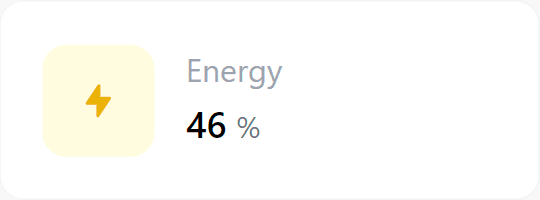
ESP-DASH Pro feature. This functionality is available only in the commercial edition of ESP-DASH.The energy card displays a value next to an energy icon, with an optional unit symbol. Use it for power consumption, energy usage or similar measurements.
Constructor
Card energy(&dashboard, ENERGY_CARD, "Power Consumption", "kWh");Prop
Type
Methods
update()
Sets the displayed value. Call dashboard.sendUpdates() afterwards to push the change to connected clients.
energy.update(int value);
energy.update(float value);
energy.update(const String &value);
Pass a second const char* symbol argument to change the symbol at the same time:
energy.update(value, "Wh");Example
#include <Arduino.h>
#if defined(ESP8266)
  #include <ESP8266WiFi.h>
  #include <ESPAsyncTCP.h>
#elif defined(ESP32)
  #include <WiFi.h>
  #include <AsyncTCP.h>
#endif
#include <ESPAsyncWebServer.h>
#include <ESPDash.h>

const char* ssid = "YOUR_SSID";
const char* password = "YOUR_PASSWORD";

AsyncWebServer server(80);
ESPDash dashboard(&server);

Card energy(&dashboard, ENERGY_CARD, "Power Consumption", "kWh");

void setup() {
  Serial.begin(115200);

  WiFi.mode(WIFI_STA);
  WiFi.begin(ssid, password);
  if (WiFi.waitForConnectResult() != WL_CONNECTED) {
    Serial.println("WiFi connection failed");
    return;
  }
  Serial.print("IP address: ");
  Serial.println(WiFi.localIP());

  server.begin();
}

void loop() {
  static unsigned long lastUpdate = 0;
  if (millis() - lastUpdate > 3000) {
    lastUpdate = millis();
    energy.update((int)random(0, 100));
    dashboard.sendUpdates();
  }
}