File
The default OTA mode, in which you upload a .bin file from the portal. Covers staging, the capacity check, MD5 verification, update targets and the HTTP requests involved.
In File mode, you upload a .bin file from your computer through the portal, and the device writes it to flash. File mode is available in ElegantOTA Lite and ElegantOTA Pro and requires no configuration beyond the integration.
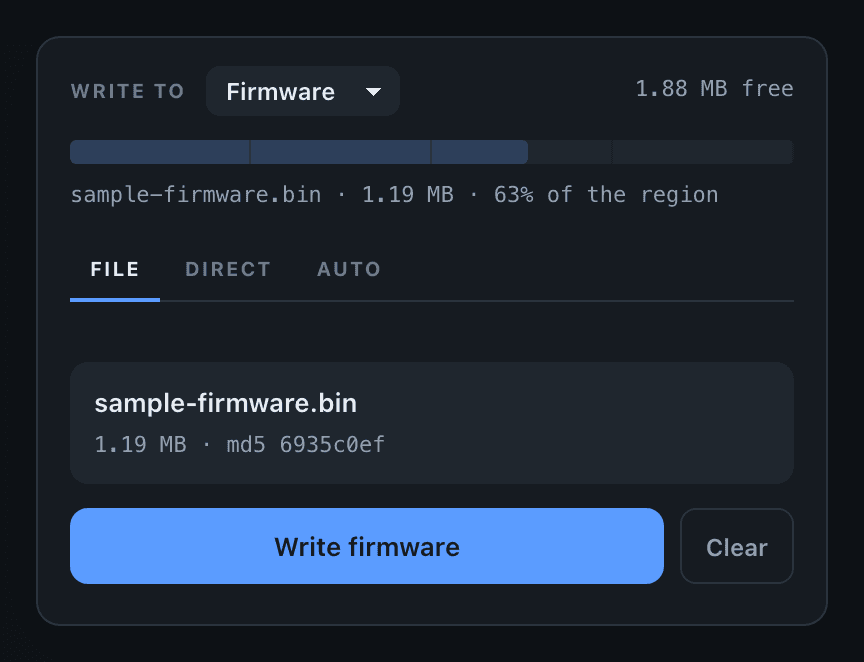
Upload a file
Which file to upload
Upload the raw .bin image produced by your build: firmware.bin in PlatformIO, or the .bin file in the build output of the Arduino IDE. Do not upload a .uf2 file or an archive.
- Open
http://<device-ip>/updateand select the File tab. - Drag a
.binfile onto the drop zone, or click it to choose a file. - Review the staged file, then click Write firmware (or Write filesystem).
Selecting a file does not write anything. The portal first stages the file: it reads it, computes its MD5 digest and compares its size with the capacity of the target region. The write button is enabled only when the file fits.
Capacity check
The bar below the header represents the target flash region to scale. If the staged file is larger than the region, the portal reports it, for example:
1.42 MB will not fit the 1.19 MB regionThe write button remains disabled and nothing is written. When no file is staged, the bar shows how much of the region the running firmware occupies.
Update targets
The Write to selector chooses whether the file is written to the firmware region or to the filesystem region. The capacity check follows the selection, because the two regions have different sizes.
A filesystem update replaces the entire LittleFS or SPIFFS image. All files currently stored on the device are lost.
In ElegantOTA Pro, you can disable either target. See Disable Firmware OTA and Disable Filesystem OTA.
Verification
The portal computes the MD5 digest of the file in the browser and sends it to the device before the transfer starts. The device compares the digest with the data written to flash and rejects the update if they differ.
A truncated upload, an interrupted connection or a corrupted file is therefore rejected, and the device continues to run its current firmware.
HTTP requests
The portal performs the update with two requests. Both require the credentials configured with authentication, if any.
| Request | Purpose |
|---|---|
GET /ota/start?mode=fr&hash=<md5> | Opens the target flash region and records the expected MD5 digest. |
POST /ota/upload | Transfers the file as multipart/form-data. |
The mode parameter is fr for firmware or fs for the filesystem image; any other value, or no value, selects firmware. The hash parameter is optional. If it is present but is not a 32-character hexadecimal string, the device rejects the request before it opens the flash region.
After a successful write, the device reboots into the new firmware unless you disabled auto reboot.
Callbacks
The callbacks fire for File mode as for the other modes:
ElegantOTA.onStart([]() {
  Serial.println("Update started");
});

ElegantOTA.onProgress([](size_t current, size_t final) {
  Serial.printf("%u / %u bytes\n", current, final);
});

ElegantOTA.onEnd([](bool success) {
  Serial.println(success ? "Update installed" : "Update failed");
});
In ElegantOTA Pro, ElegantOTA.source() returns OTA_SOURCE_UPLOAD for an update uploaded from the portal, which distinguishes it from an update the device downloaded itself.
Disable File mode
ProAll three OTA modes are enabled by default. In ElegantOTA Pro, you can disable File mode so that the portal offers only the modes you want:
// Do not accept file uploads from the portal
ElegantOTA.setFileMode(false);
The File tab disappears from the portal, and /ota/start refuses requests, regardless of the client that sends them. If all modes are disabled, the portal states that no update method is enabled.
To read the current setting, call checkFileMode():
if (ElegantOTA.checkFileMode() == false) {
  Serial.println("File uploads from the portal are disabled");
}
setFileMode() and setFilesystemMode()
setFileMode() controls whether an image may be uploaded from the browser. setFilesystemMode() controls whether the filesystem region may be overwritten, by any mode. The names are similar, but the settings are independent.
Other OTA modes
Uploading a file is suitable during development and for devices you can reach. ElegantOTA Pro adds two modes that do not require anyone at the portal:
- Direct Download: the device downloads an image from a URL.
- Auto Update: the device checks an update channel on a schedule and installs new firmware.
In ElegantOTA Lite, the portal shows both modes as locked tabs.