Direct Download
Let the device download a firmware or filesystem image itself from an HTTP or HTTPS URL, from the portal or from your own code.
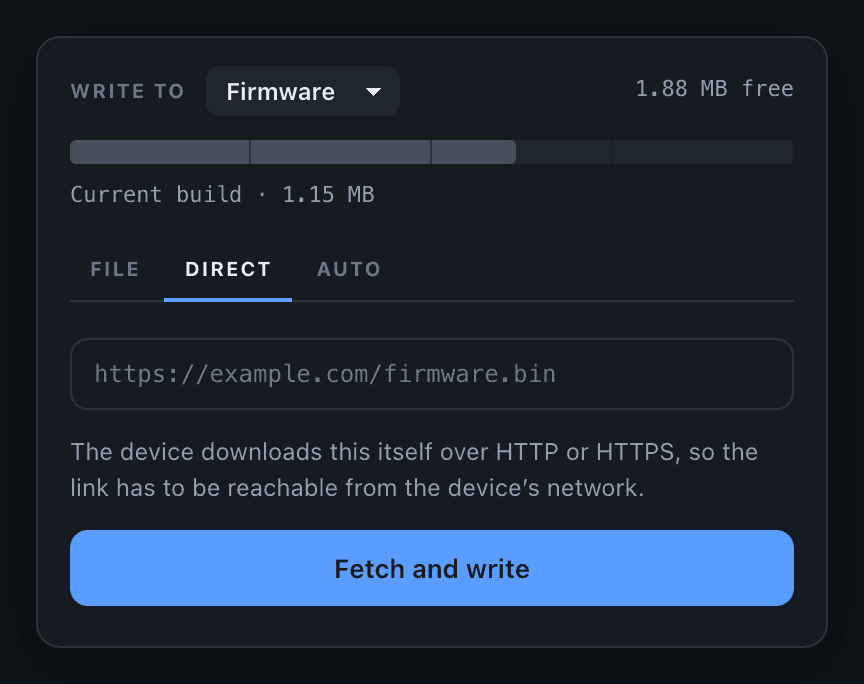
ElegantOTA Pro feature. This functionality is available only in the commercial edition of ElegantOTA.In Direct Download mode, the device downloads the image itself over HTTP or HTTPS. In a regular upload, the image travels twice: from the build server to the browser, and from the browser to the device. With Direct Download, you enter a URL in the portal and the device fetches the image directly.
This is useful when the image is large, when the browser is on a slow connection, or when you do not want to keep the portal open during the transfer. The portal shows the progress, but the device performs the download, so the transfer continues if you close the page.
URL requirements
The URL must start with http:// or https://, point to a raw .bin image and be at most 256 characters long. It must be reachable from the device's network, not only from your computer. Redirects are followed, so a GitHub release asset link works.
Use the portal
- Open the portal and select the Direct tab.
- Choose the target (firmware or filesystem) in the Write to selector.
- Paste the URL and click Fetch and write.
The device connects to the server and, if the server reports the image size, checks that the image fits the target region before it writes anything. It then streams the image into flash.
Start a download from your code
You can start the same download from your sketch with pullFrom(), without anyone using the portal:
#include <ElegantOTAPro.h>

// ... web server declaration

void setup() {
  // ... connect to Wi-Fi and configure the web server

  ElegantOTA.begin(&server);
  server.begin();
}

void loop() {
  server.handleClient();
  ElegantOTA.loop();   // Drives the download
}

void installNightlyBuild() {
  ElegantOTA.pullFrom("https://example.com/firmware/nightly.bin");
}
pullFrom() queues the download and returns immediately. The transfer is performed by ElegantOTA.loop(), a slice at a time, so your sketch keeps running while the download is in progress.
Signature
bool pullFrom(const char * url,
              OTA_Mode mode = OTA_MODE_FIRMWARE,
              const char * md5 = NULL);
Prop
Type
pullFrom() returns true if the download was queued, and false if:
- the device is already busy with a download or an update channel check,
- the URL does not start with
http://orhttps://, or is too long, or - the selected update target is disabled with
setFirmwareMode()orsetFilesystemMode().
Pass an MD5 digest whenever you can. The device compares it with the data it wrote, so a truncated or corrupted download is rejected instead of installed:
ElegantOTA.pullFrom("https://example.com/firmware/2.1.0.bin",
                    OTA_MODE_FIRMWARE,
                    "6f5902ac237024bdd0c176cb93063dc4");
Monitor the download
The same callbacks fire as for an upload from the portal: onStart, onProgress and onEnd. To distinguish the two, check the source of the update:
ElegantOTA.onStart([]() {
  if (ElegantOTA.source() == OTA_SOURCE_DIRECT) {
    Serial.println("The device is downloading an image");
  }
});
onStart fires after the server has responded and the size check has passed. onEnd fires only for a download whose onStart fired, so a URL that cannot be reached does not produce an onEnd(false). If the server does not report the image size, the final argument of onProgress is 0.
You can also read the state of the device-side task with state():
switch (ElegantOTA.state()) {
  case OTA_STATE_IDLE:         break;  // Nothing in progress
  case OTA_STATE_QUEUED:       break;  // Accepted, not started
  case OTA_STATE_CHECKING:     break;  // Fetching the update channel manifest
  case OTA_STATE_CONNECTING:   break;  // Opening the connection
  case OTA_STATE_TRANSFERRING: break;  // Writing to flash
  case OTA_STATE_SUCCESS:      break;  // Written; the device reboots if auto reboot is enabled
  case OTA_STATE_FAILED:       break;  // The portal shows the reason
  default: break;
}
state() describes only downloads and update channel checks. Uploads from the portal do not change it.
HTTPS
https:// URLs work without configuration, but the server certificate is not verified unless you pin a root certificate. An unverified connection protects the transfer against passive eavesdropping, but not against a server that impersonates the real one.
For production devices, pin the root certificate of the host you download from:
static const char UPDATE_ROOT_CA[] PROGMEM = R"CERT(
-----BEGIN CERTIFICATE-----
... your root CA ...
-----END CERTIFICATE-----
)CERT";

void setup() {
  ElegantOTA.setCACert(UPDATE_ROOT_CA);
  ElegantOTA.begin(&server);
}
Pass NULL to return to unverified connections. On ESP32, the library keeps a pointer to the certificate, so the certificate must remain valid for the lifetime of the program; declare it static or global, as above.
ESP8266, RP2040 and RP2350
On these platforms, HTTPS uses BearSSL with a receive buffer of ELEGANTOTA_TLS_RX_SIZE bytes (default 16384), which costs RAM. If HTTPS downloads fail while HTTP downloads work and free heap is low, reduce ELEGANTOTA_TLS_RX_SIZE, or serve the image over plain HTTP on a network you trust.
Disable Direct Download
All three OTA modes are enabled by default. Anyone who can open the portal, which means anyone who passes authentication, can make the device download an image from a URL of their choice. To prevent this, disable the mode:
ElegantOTA.setDirectDownloadMode(false);The Direct tab disappears from the portal and the /ota/download endpoint refuses requests. pullFrom() called from your own code is not affected. See Disable Direct Download.
Compile-time options
The following macros control the download. Define them as build flags or before including the library.
| Macro | Default | Description |
|---|---|---|
ELEGANTOTA_PULL_BUDGET | 8192 | Maximum number of bytes transferred per loop() call. Increase it for faster downloads; decrease it if your sketch needs more time per loop iteration. |
ELEGANTOTA_PULL_TIMEOUT | 10000 | Time in milliseconds without received data after which a stalled download is aborted. |
ELEGANTOTA_TLS_RX_SIZE | 16384 | BearSSL receive buffer size in bytes (ESP8266, RP2040, RP2350). |
ELEGANTOTA_TLS_TX_SIZE | 512 | BearSSL transmit buffer size in bytes (ESP8266, RP2040, RP2350). |
ELEGANTOTA_ENABLE_REMOTE | 1 | Set to 0 to remove the HTTP client, Direct Download and Auto Update from the build and save flash. |
Other OTA modes
- File: upload a
.binfile from your computer. Available in ElegantOTA Lite and Pro. - Auto Update: the device checks an update channel and installs new firmware without anyone at the portal.
File
The default OTA mode, in which you upload a .bin file from the portal. Covers staging, the capacity check, MD5 verification, update targets and the HTTP requests involved.
Auto UpdateNewPro
Configure an update channel so the device checks a JSON manifest on a schedule and installs newer firmware. Covers the manifest, version comparison and onUpdateAvailable.