# Auto Update (/docs/elegantota/ota-modes/auto)
> Configure an update channel so the device checks a JSON manifest on a schedule and installs newer firmware. Covers the manifest, version comparison and onUpdateAvailable.
Library: ElegantOTA
Availability: ElegantOTA Pro only
In Auto mode, the device updates itself. You compile an **update channel** into the firmware: a URL that points to a small JSON manifest describing the latest release. The device fetches the manifest on a schedule, compares the advertised version with its own, and can install the new firmware without anyone opening the portal.
Auto mode is designed for fleets of devices that you cannot reach individually.
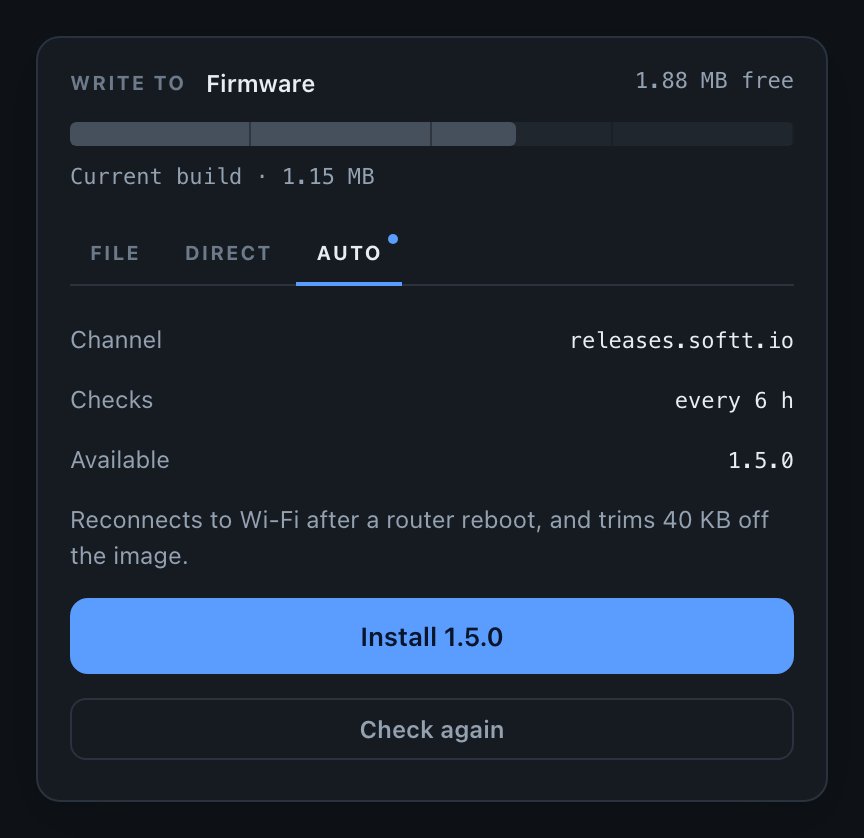
## The manifest
Host a manifest like the following anywhere the device can reach over HTTP or HTTPS, for example in object storage, as a GitHub release asset or on your own server:
```json title="latest.json"
{
"version": "1.2.0",
"url": "https://example.com/firmware/my-device-1.2.0.bin",
"md5": "6f5902ac237024bdd0c176cb93063dc4",
"notes": "Reconnects to Wi-Fi after a router reboot"
}
```
- All values must be JSON strings, and only top-level fields are read. Unknown fields are ignored, so you can keep your own metadata in the same file.
- A manifest whose reported size (`Content-Length`) exceeds 4096 bytes is rejected. Keep the manifest small.
- An update channel always carries firmware; the manifest has no field to select a target. A filesystem image has no version for the device to compare against, so write one with [File](/docs/elegantota/ota-modes/file) or [Direct Download](/docs/elegantota/ota-modes/direct-download), where you choose the target explicitly.
Include `md5` whenever possible. It is the only way for the device to verify that the data it wrote matches the image you published.
## Set up an update channel
### Set the running version
The device compares the manifest version with its own version, so set it with [`setFWVersion()`](/docs/elegantota/features/firmware-version):
```cpp
ElegantOTA.setFWVersion("1.0.0");
```
If no firmware version is set, every manifest version is considered newer, and the device offers or installs the advertised firmware on every check.
### Set the manifest URL
```cpp
ElegantOTA.setUpdateURL("https://example.com/firmware/latest.json");
```
### Set the check interval
```cpp
ElegantOTA.setCheckInterval(6 * 60 * 60 * 1000UL); // Every 6 hours
```
The interval is in milliseconds. If you pass `0` or do not call `setCheckInterval()`, the device checks only when you call `checkForUpdate()` or when someone clicks **Check for updates** in the portal.
### Choose whether to install automatically
```cpp
ElegantOTA.setAutoInstall(true); // Install as soon as a newer version is found
```
With `setAutoInstall(false)` (the default), a check that finds a newer version only records it. The portal then shows an **Install** button, and your code decides when to install, for example in the [`onUpdateAvailable`](#react-to-a-new-version) callback.
## Version comparison
The numeric parts of the versions are compared field by field, so `1.10.0` is newer than `1.9.4`. A leading `v` is ignored. A pre-release suffix after a hyphen sorts below the same version without a suffix, and two pre-release suffixes are compared as text.
| Running | Manifest | Update offered |
| --- | --- | --- |
| `1.0.0` | `1.0.1` | Yes |
| `1.9.4` | `1.10.0` | Yes |
| `1.2.0` | `v1.2.0` | No (same version) |
| `1.2.3` | `1.2` | No |
| `1.0.0-rc1` | `1.0.0` | Yes (a release is newer than its pre-release) |
| `1.0.0-rc1` | `1.0.0-rc2` | Yes |
| `1.0.0` | `1.0.0-rc1` | No |
Versions that contain no digits, such as build hashes or code names, are considered newer whenever they differ from the running version.
## React to a new version
`onUpdateAvailable` fires whenever a check finds a newer version. Use it to decide when to install, for example when the device is idle, when the battery is charged or after a user confirms the update.
```cpp
void onUpdateAvailable(const char* version, const char* notes) {
Serial.printf("Version %s is available\n", version);
if (strlen(notes)) Serial.println(notes);
if (machineIsIdle()) { // Your own condition
ElegantOTA.installUpdate();
}
}
void setup() {
// ...
ElegantOTA.begin(&server);
ElegantOTA.onUpdateAvailable(onUpdateAvailable);
}
```
The callback fires on every check that finds a newer version, not only on the first. If auto install is enabled, the installation starts after the callback returns.
During the installation, the regular [callbacks](/docs/elegantota/features/callbacks) `onStart`, `onProgress` and `onEnd` fire, and `ElegantOTA.source()` returns `OTA_SOURCE_CHANNEL`.
## Check on demand
`setCheckInterval()` starts its timer when you call it, so the first scheduled check takes place one interval later. To check at boot as well, call `checkForUpdate()`:
```cpp
ElegantOTA.begin(&server);
ElegantOTA.checkForUpdate(); // Check once now
```
`checkForUpdate()` and `installUpdate()` queue the work and return immediately. The manifest and the firmware are fetched in `ElegantOTA.loop()`, so make sure your sketch calls it. Scheduled checks are skipped while a download is in progress.
## Reference
```cpp
void setUpdateURL(const char * url); // Manifest URL
const char * getUpdateURL();
void setCheckInterval(uint32_t interval_ms); // 0 disables scheduled checks
void setAutoInstall(bool enable); // Install without confirmation (default: false)
bool checkAutoInstall();
bool checkForUpdate(); // Queue a check now
bool installUpdate(); // Install the version found by the last check
bool updateAvailable(); // A newer version was found
const char * availableVersion(); // Its version, or ""
const char * availableNotes(); // Its notes, or ""
void onUpdateAvailable(std::function callable);
```
`checkForUpdate()` returns `false` if Auto mode is disabled, no update channel is set, or the device is busy. `installUpdate()` returns `false` if Auto mode is disabled, no newer version is waiting, the device is busy, or firmware updates are disabled with [`setFirmwareMode(false)`](/docs/elegantota/security/disable-firmware-ota).
## Disable Auto mode
All three OTA modes are enabled by default. Disabling Auto mode stops scheduled checks, removes the **Auto** tab from the portal, and makes `checkForUpdate()` and `installUpdate()` return `false`:
```cpp
ElegantOTA.setAutoMode(false);
```
You can use it to pause automatic updates while a critical task is running and enable them again afterwards:
```cpp
ElegantOTA.setAutoMode(!machineIsBusy());
```
Disabling Auto mode differs from not configuring a channel. Without `setUpdateURL()`, there is nothing to check, and the **Auto** tab states that no update channel is set. With `setAutoMode(false)`, a channel is configured but deliberately not checked.
```cpp
if (ElegantOTA.checkAutoMode() == false) {
Serial.println("Automatic updates are paused");
}
```
## HTTPS
The manifest and the firmware are fetched with the same client, so `setCACert()` applies to both. See [Direct Download](/docs/elegantota/ota-modes/direct-download#https) for how to pin a root certificate.
An update channel instructs the device to run whatever firmware the manifest points to. Treat the server that hosts your manifest and firmware as part of your firmware's trust boundary: pin a root certificate, and restrict write access to the storage that serves the files.
## Other OTA modes
- [File](/docs/elegantota/ota-modes/file): upload a `.bin` file from your computer. Available in ElegantOTA Lite and Pro.
- [Direct Download](/docs/elegantota/ota-modes/direct-download): give the device a URL to download a single image.